Prerequisites
-
Have a Bear Blog
First, ensure you’ve created your Bear Blog at bearblog.dev. Your blog URL will look something like
yourblogname.bearblog.dev. For example, check out our blog at naveenhonestraj.bearblog.dev. -
Sign up for Mosaic
Next, sign up for Mosaic and add your Bear Blog website to it. Our onboarding widget will guide you through this process, making it quick and easy to get started.
-
Get the URL from Mosaic
Once your website is set up in Mosaic, you’ll find the OG image URL under the URL column of your site’s page. Copy this URL, as you’ll need it for the integration.
How to Add Mosaic to Bear Blog
Bear Blog is different from many modern blog platforms because it’s a fully hosted solution, meaning you don’t need to build and deploy it locally. You can simply log in and create blog posts with ease. Here’s how to integrate Mosaic into Bear Blog and add OG images to your posts:
-
Create or edit a blog post
Start by either creating a new post or editing an existing one.
-
Add the
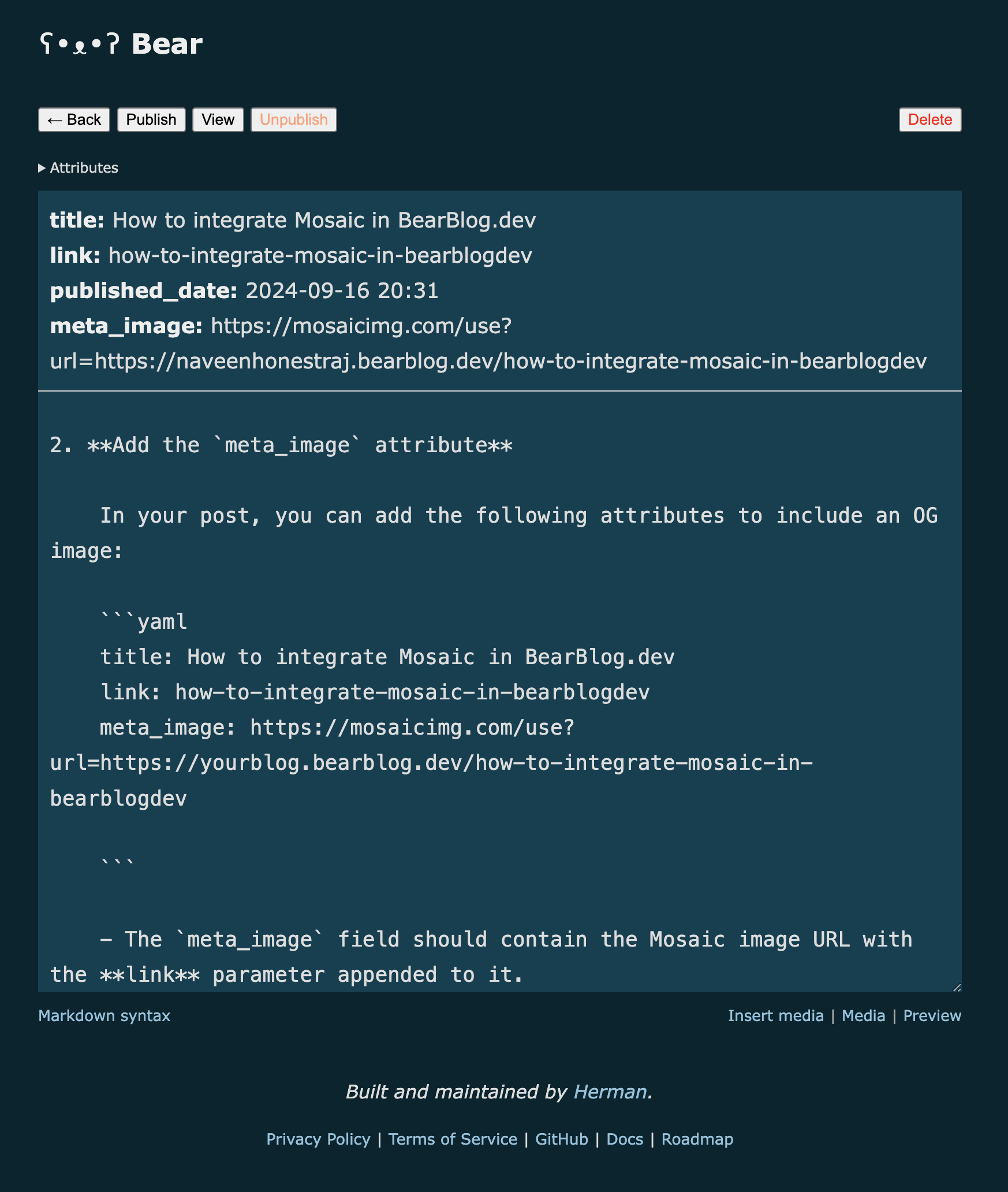
meta_imageattributeIn your post, you can add the following attributes to include an OG image:
title: How to integrate Mosaic in BearBlog.dev link: how-to-integrate-mosaic-in-bearblogdev meta_image: https://mosaic.praveenjuge.com/use?url=https%3A%2F%2Fyourblog.bearblog.dev%2Fhow-to-integrate-mosaic-in-bearblogdev- The
meta_imagefield should contain the Mosaic endpoint with itsurlquery parameter set to the encoded post link. - If you haven’t created a custom link for your post, simply publish your post
with the title attribute first. Bear Blog will automatically generate a
link, which you can then use in the
meta_imagefield when you republish your post.
Tip: This method allows you to dynamically generate beautiful OG images for your blog posts.
- The
Updating Your Bear Blog Template (Optional)
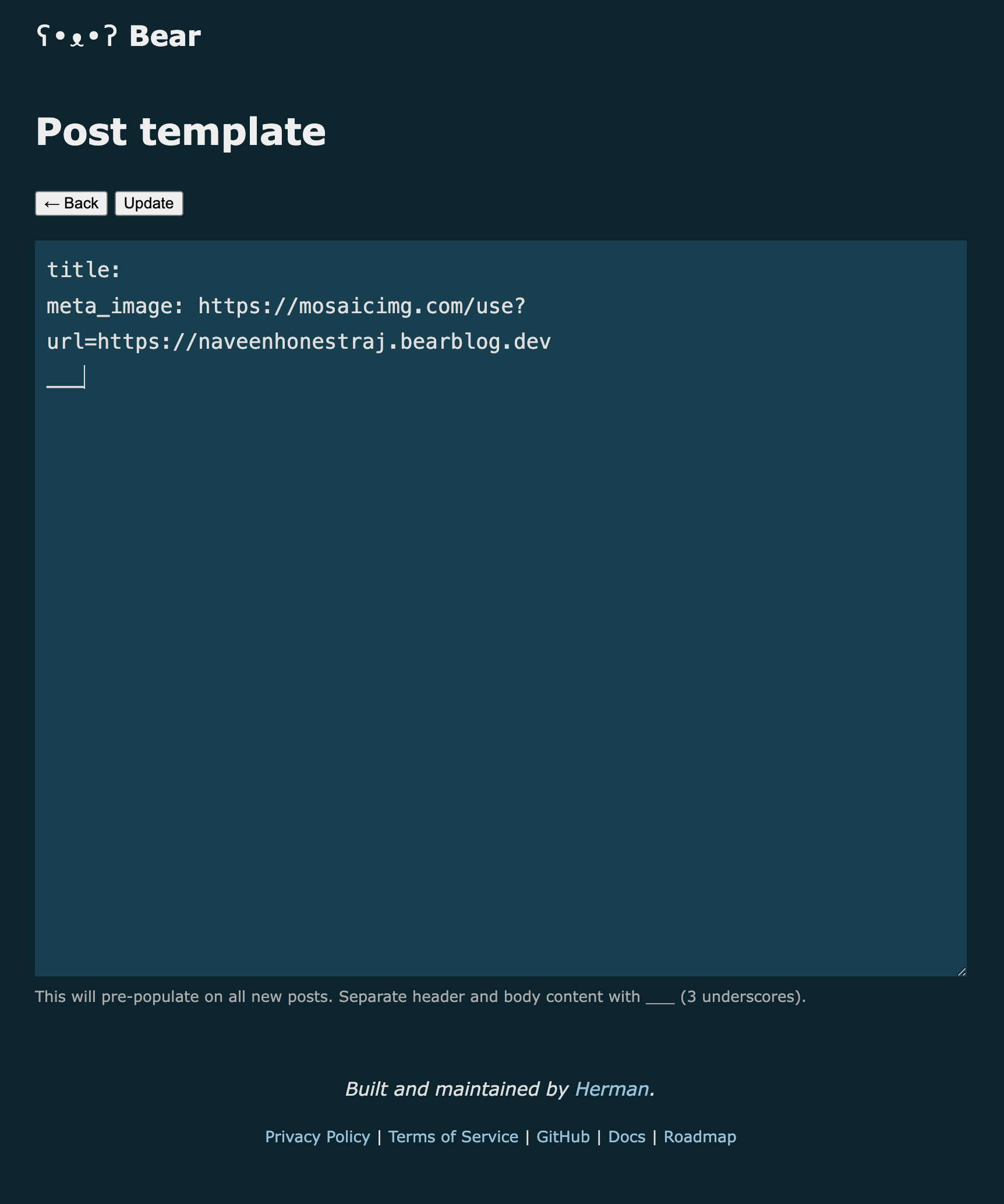
If you want to make this process even easier, you can update your Bear Blog’s template to automatically include a Mosaic OG image. Here’s how:
title:
meta_image: https://mosaic.praveenjuge.com/use?url=https%3A%2F%2Fyourblog.bearblog.dev
___
By updating the template, every new post will have the OG image field pre-filled. All you need to do is update the URL with the correct post link.
Updating the OG Image After a Theme Change
If you've recently updated your Bear Blog theme and want the OG images to reflect the new design, there is no manual step in Mosaic. Shared images refresh automatically after 30 days. If a social platform still shows an older preview, use that platform's card debugger or re-scrape tool to ask it to fetch again.